







A freezing PC can cause great annoyance since it reduces output and forces users to seek solutions. Finding the root cause of a freezing computer can be difficult since simple software problems to complicated hardware problems can all affect it.
Typical freezing PC symptoms include possible data loss, spinning cursors, and abrupt irresponsibility. Users may run across the Blue Screen of Death (BSOD), a sign of a major system malfunction, in severe conditions.
Most freezing problems are fixable with a methodical approach to maintenance and troubleshooting, notwithstanding their difficulties. Oftentimes, users can find and resolve the underlying issue by looking at common causes for PC freezes and by following doable diagnostic procedures.
This guide will explore ten potential causes of a freezing PC, providing a roadmap for both seasoned and novice users to navigate these computing challenges and restore their systems to optimal performance.
1. Insufficient Memory (RAM) In PC
A fundamental part of your computer system, random access memory (RAM) acts as temporary storage for running programs and processes. Your PC might freeze or slow down noticeably if it runs low on RAM to manage the current burden.
Consider RAM as the short-term memory for your machine. A PC with inadequate RAM will find it difficult to manage several active tasks concurrently, much as people can struggle to balance several complicated ideas at once. This can set off an annoying cycle of slow performance, freezes, and crashes.
Your usual usage patterns, installed software, and operating system will all affect the RAM your system requires. Although 8GB or more of RAM is common on PCs, this may not be sufficient for demanding uses, including gaming or running several virtual computers.
Should you believe that low RAM is freezing your PC, there are a few obvious indicators to check for:
- Running several programs slows down your computer noticeably.
- Usually, “Low Memory” warnings or error messages show up.
- Your PC finds it difficult to smoothly move between open programs.
- You have random freezes or crashes, particularly when multitasking.
Luckily, finding and fixing RAM problems is rather easy. Built-in tools such as Windows Task Manager let you track real-time RAM consumption, pointing out which programs are most resource-intensive. You might be ready for a hardware update if you regularly max out your available RAM.
Often, a straightforward and reasonably priced approach to increase general performance and stability is adding more RAM to your system. A larger short-term memory pool for your PC will help it manage several tasks more effectively, so minimizing the possibility of freezes and crashes.
Of course, it is so important to make sure your particular system is getting the right kind and quantity of RAM installed. Before making any purchases or trying an upgrade, find the suitable RAM specifications by consulting the documentation for your PC or using internet tools.
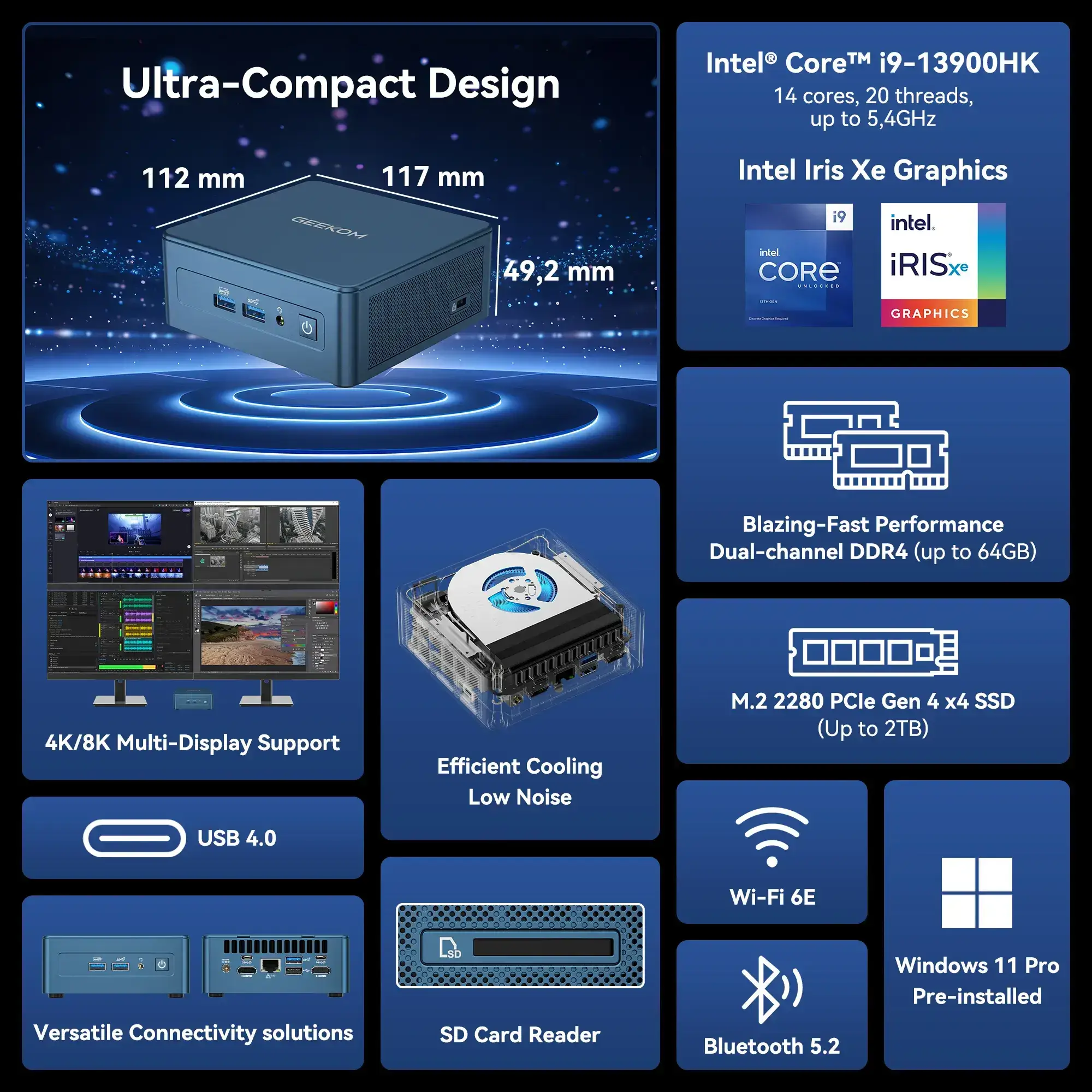
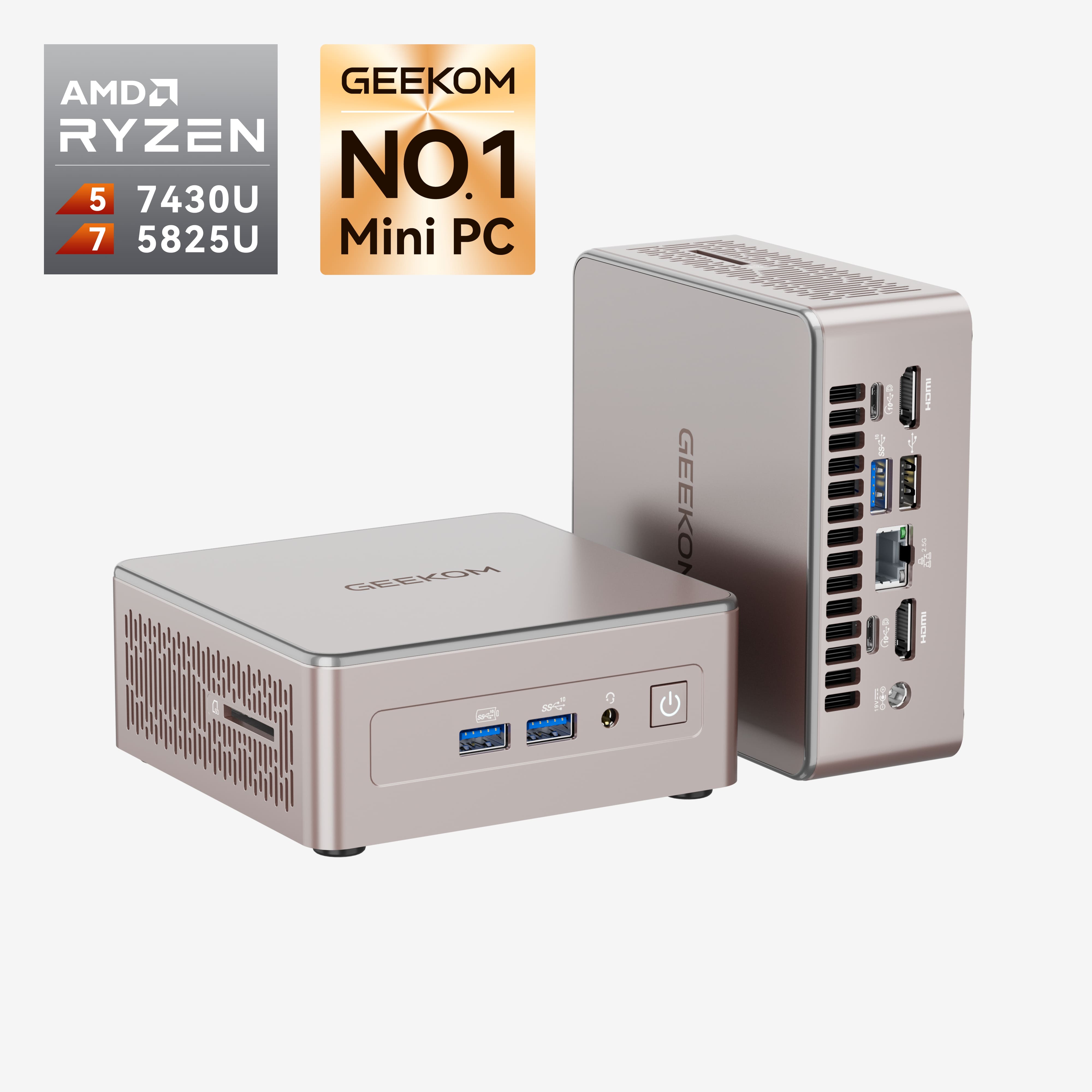
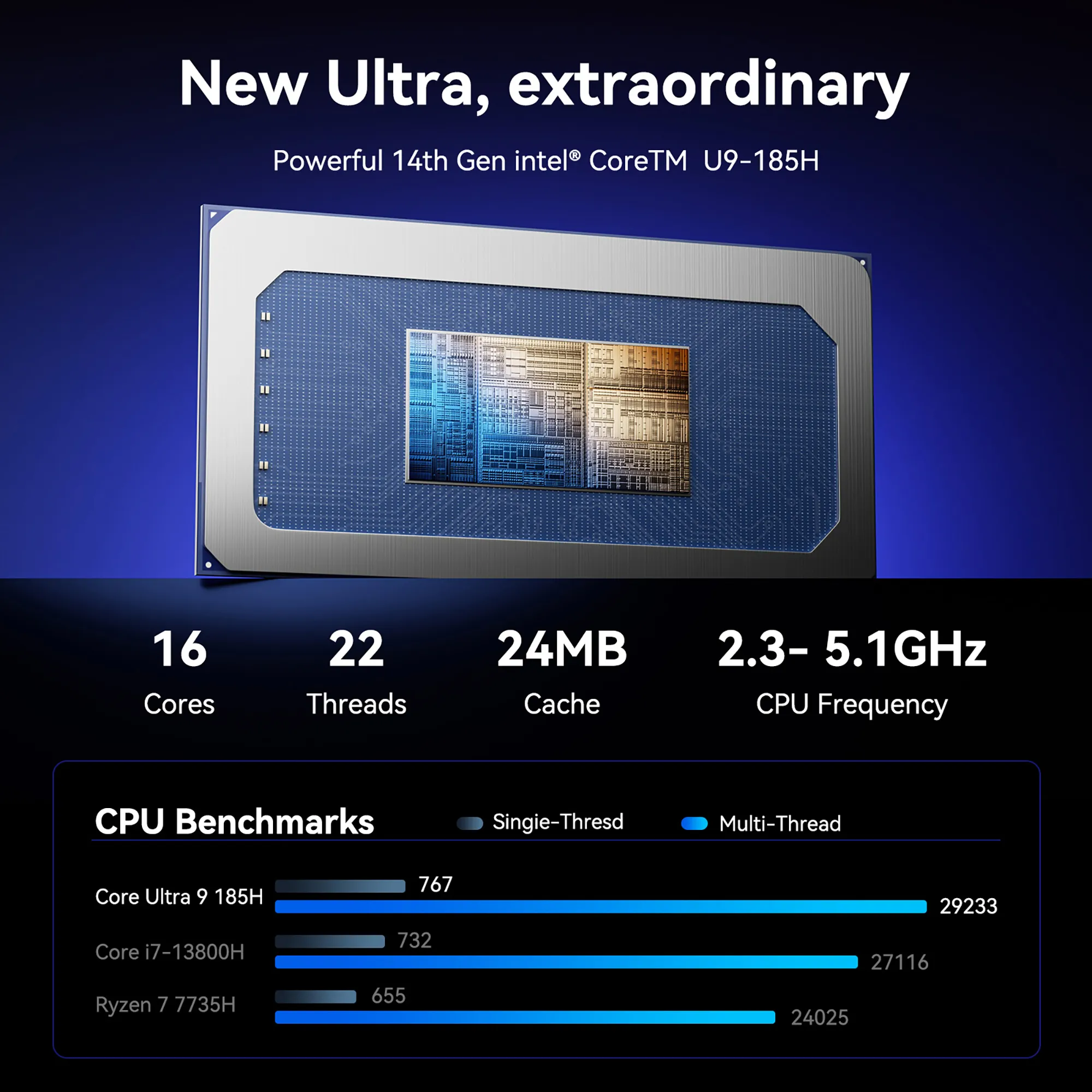
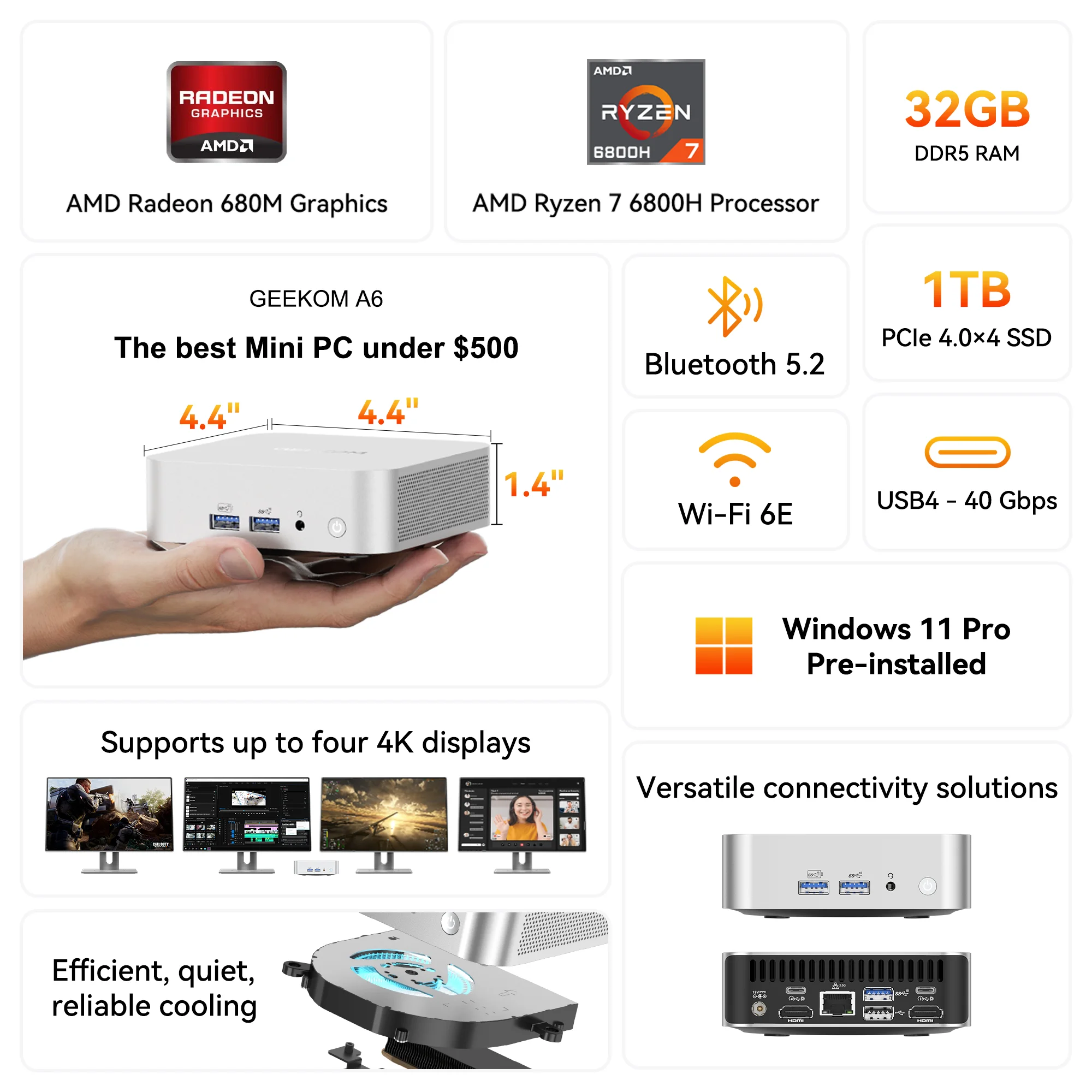
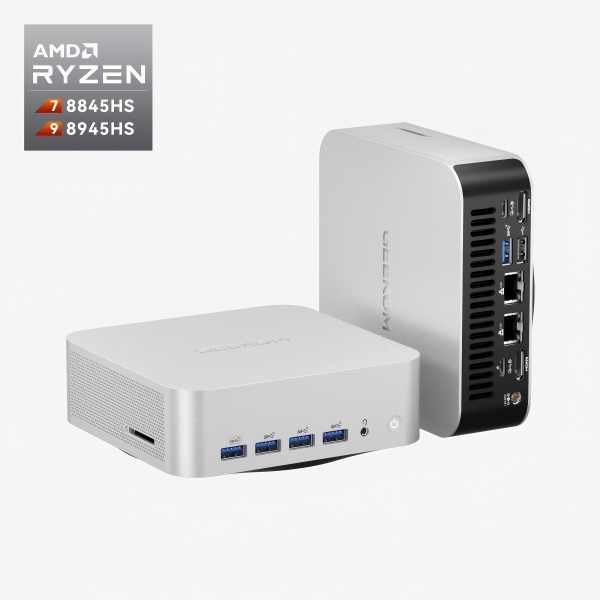
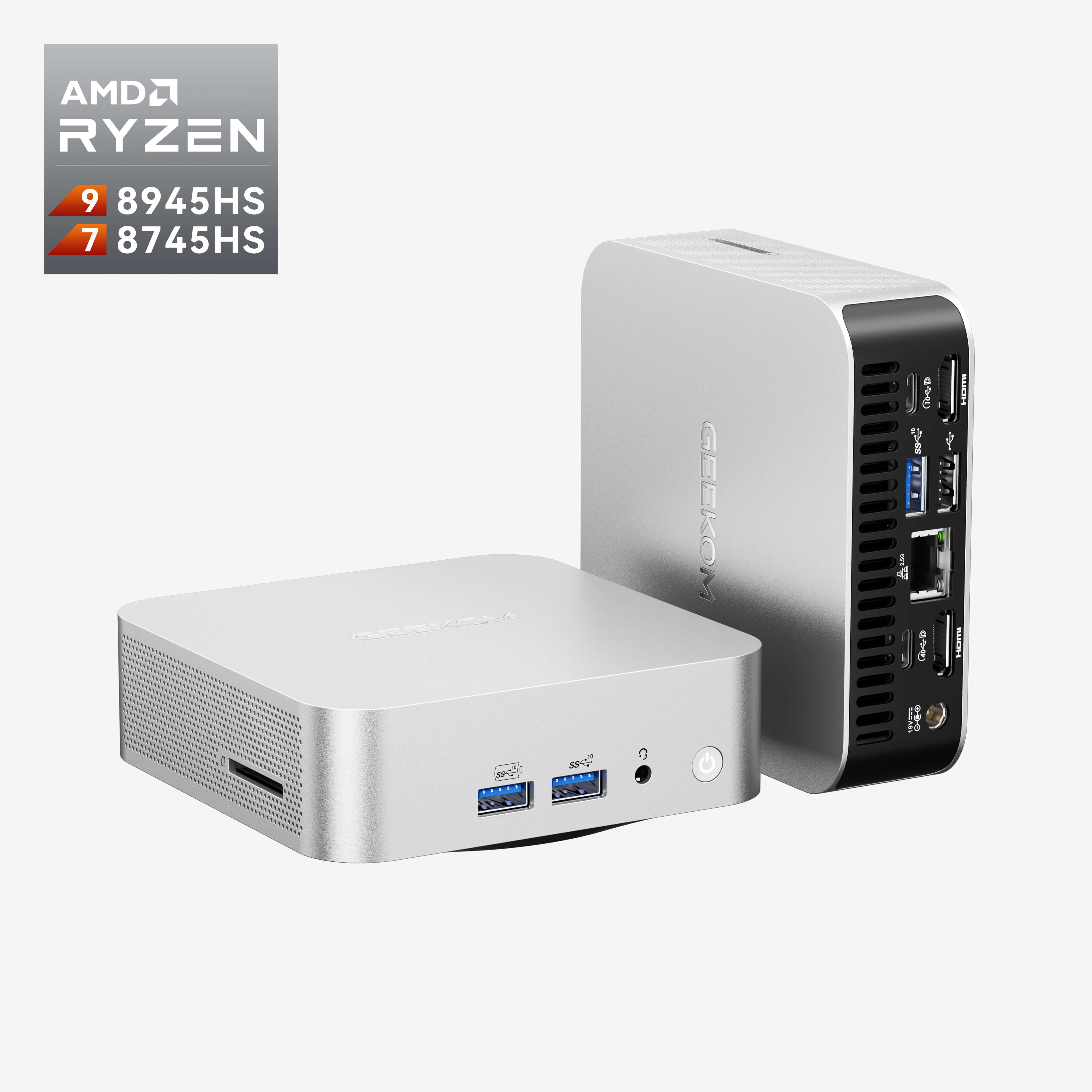
Here’s an upgrade recommendation, you can buy this mini PC, with 32GB RAM for a great price.
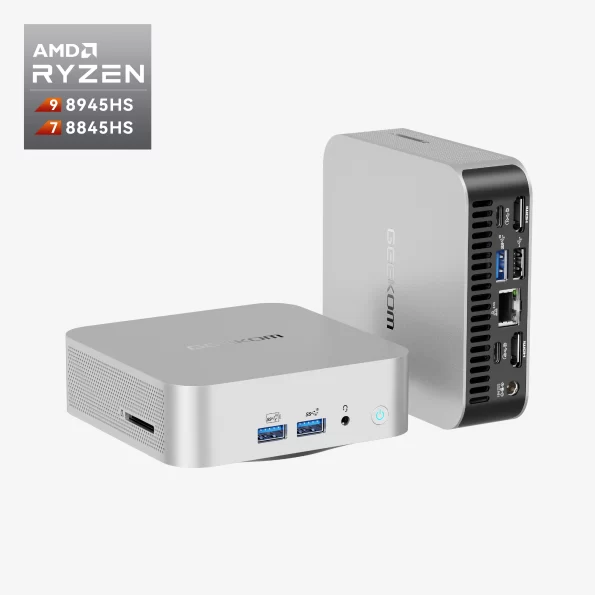
New Arrival!
- AMD Ryzen 9 8945HS or Ryzen 7 8845HS.
- AMD Radeon Graphics 780M.
- Dual-channel DDR5 5600MT/s, up to 64GB.
- M.2 2280 PCIe Gen 4 x4 SSD, up to 2TB.
- Wi-Fi 6E and Bluetooth® 5.2.
2. Your PC Is Covered In Dust And Can’t Dissipate Heat
Your computer creates heat as it runs, a normal result of the intricate electrical operations among its parts. Usually involving fans and heat sinks working together to dissipate extra warmth and maintain good operating temperatures, nowadays PCs are made with sophisticated cooling systems to manage this heat.
But over time, a common problem—dust accumulation—may progressively compromise the cooling efficiency of your PC. Within your computer case, dust, lint, and other trash can gather to block air vents, jam fan blades, and create insulating layers on delicate parts.
Many heat-related issues can result from this build-up of dust:
- Less cool air can enter and flow within your PC case as dust blocks vents and filters. Because of this restricted airflow, heat can develop faster and drive temperatures into dangerous range.
- Dust accumulation on heat sinks and other components can function as an insulating layer, so hindering effective heat transfer away from vital parts like the CPU and GPU. This can cause these parts to overheat and throttle their performance over time to stop damage.
- As your PC’s fans run harder to pass air through dusty filters and vents, they may suffer more wear and tear. In extreme circumstances, this can cause lower cooling efficiency, louder operation, and even early fan failure.
The result of this dust-induced overheating is often a PC that freezes, crashes, or experiences sudden shutdowns as it struggles to maintain stable temperatures. In some cases, these issues are more frequent when running resource-intensive tasks like playing games and video rendering, which generates more heat than regular web browsing or document editing.
Luckily, avoiding and fixing dust accumulation is rather easy. Frequent interior cleaning of your PC can help to preserve ideal heat dissipation and airflow. Usually, this entails:
- Turning off and disconnecting your computer
- Opening the case (see manufacturer guidelines).
- Using compressed air to gently remove dust from fans, heat sinks, and other surfaces
- Cleaning or replacing any clogged air filters
- Making sure cables are orderly arranged helps to maximize airflow.
In more advanced situations, you should also consider upgrading your PC’s cooling system for better heat transfer using liquid cooling solutions, extra fans, or high-performance thermal paste.
Maintaining a clean and well-kept PC helps you guarantee that overheating does not cause frustrating freezes or possible hardware damage over time. The next part will look at another possible offender: hard drive problems that might cause your system to crash.
3. Something Wrong With the Hard Drive
The hard drive is the main part of your computer’s long-term memory. It is a complicated electromechanical device that holds all of your files, programs, and operating systems. Some problems can happen with modern hard drives that can cause PCs to freeze, slow down, and cause other annoying issues.
Hard drive issues can manifest in several ways:
- Hard drives include sensitive moving components, including read-through heads and spinning platters. These components may misalign or fail from physical shocks, drops, or too much vibration, therefore producing data loss and system instability.
- Sometimes the issue is with data access and organization rather than with the technology of the hard drive. As your PC tries to read and write data, logical faults—such as faulty file systems or fragmented data—may cause it to stop or crash.
- Bad sectors—areas that no longer consistently store data—can arise over time from the magnetic surfaces of a hard drive’s platters. Your PC can hang, freeze, or show error messages while it tries to access these compromised areas.
- Operating system of your PC communicates with the hard drive using specific tools known as drivers. Data access issues and system instability may result from obsolete, corrupted, or incompatible drivers.
Usually, diagnosing hard disk problems calls for careful observation and a set of software tools. Utility tools like CHKDSK (for Windows) or FSck (for Linux and macOS) can scan your drive for faults, try fixes, and offer general drive health analysis.
Other warning signs may include:
- Unusual sounds from your PC’s hard drive—click, grind, or hum—may point to physical damage or component failure.
- If your PC takes a long time to load data, start programs, or boot up, it may indicate hard drive troubles.
- Regular freezes, blue screens, or unplanned shutdowns can all hint to underlying drive problems.
Acting fast will help you avoid data loss if you believe that hard disk issues are freezing your PC. By backing up your vital files to an external drive or cloud storage, you help to guarantee that, should the drive fail, significant data is not lost.
Sometimes, driver upgrades, disk defragmentation, or software patches help to fix hard disk problems. But if the issue continues or if you believe there may be physical damage, it is always advisable to speak with a qualified data recovery company or think about totally replacing the drive.
Many consumers are looking to solid-state drives (SSDs) as a quicker, more dependable substitute for conventional hard drives as technology advances. SSDs can provide enhanced performance and stability by means of advanced error correction features and the absence of moving components, therefore lowering the danger of drive-related freezes and crashes.
Investing in a computer with at least a 1TB SSD is the future, as technology is going to move faster and faster in the future, especially in the AI space, which could exacerbate the need to increase the size of all types of files for the AI era.
Related Post: What Is 1TB SSD? What You Need To Know Before You Buy
4. Outdated or Corrupted Drivers (Operating Systems)
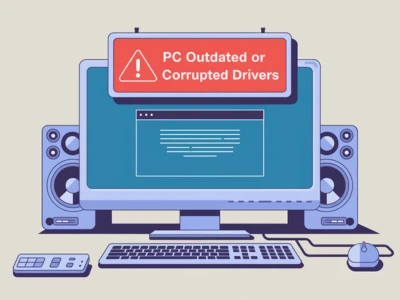
The key software link between the hardware components of your computer and its operating system is drivers. These specialist programs let your PC interact properly with graphics cards, network adapters, printers, and other devices.
Drivers who get obsolete or corrupted, however, can bring a variety of stability concerns that might cause PC freezes, crashes, and performance problems.
Why the Role of Drivers Is Important
Drivers essentially serve as translators, letting your operating system grasp and regulate the several hardware components inside your PC. Every device speaks a different language, hence drivers make sure your system can fluently communicate various languages.
However, just like any language, drivers can become obsolete over time. Older drivers could find it difficult to keep up with shifting software and hardware environments as operating systems change and hardware companies introduce new products.
Some Risks Will Hit You With The Outdated Drivers
When drivers fall behind the times, they can introduce compatibility issues and security vulnerabilities that compromise your PC’s stability and performance. Some common problems associated with outdated drivers include:
- System freezes and crashes
- Slow performance and reduced responsiveness
- Display artifacts and visual glitches
- Connectivity issues with networks and peripherals
- Increased vulnerability to malware and hacking attempts
In some cases, outdated drivers may not be able to take full advantage of newer hardware features, limiting the potential of your system’s components.
How to identify and update faulty drivers
If you suspect that outdated or corrupted drivers are causing your PC to freeze, there are 4 steps you can take to diagnose and resolve the issue:
- Use built-in tools: Windows Device Manager can find devices with missing, obsolete, or troublesome drivers. Search for any yellow exclamation marks or error codes hinting to driver problems.
- Explore manufacturer websites: Usually on their official websites, hardware companies offer the most current drivers. Download the most recent driver versions and review the support pages for your particular devices.
- Use driver update programs: Third-party solutions simplify the updating process by scanning your system for obsolete drivers and automatically downloading and installing the most recent versions.
- Sometimes totally deleting a troublesome driver and then reinstalling the most recent version can fix corruption problems and restore stability.
Proactive Driver Maintenance
Using proactive driver maintenance will help to reduce the likelihood of driver-related PC freezes and performance problems. Frequent driver updates, searching, and installation help guarantee that your hardware and software always speak the same language.
A lot of operating systems, like Windows 10 and 11, now update drivers automatically as part of their regular software maintenance. By using these features, you can help your PC stay up to date with the newest driver releases. This will make it less likely that you will have problems with stability and compatibility.
Toward a Stable and Responsive Computing Experience
Understanding the vital part drivers play in the functioning of your PC and acting to keep them current will help to prevent freeze, crash, and other annoying problems from happening. Stable and responsive computing can be mostly guaranteed by regular driver maintenance in conjunction with a proactive attitude to general system health.
5. Malware or Virus Infection
Malware and viruses are a big problem for system stability and data security in today’s tightly connected world of computers. These bad programs can get into your PC through unprotected websites, email attachments, or downloads that you should not trust. They will then mess up your system’s performance.
Some Bad Impacts of Malware and Viruses
The goal of malware and viruses is to take advantage of flaws in your PC’s software so that they can get to system resources and private data without your permission. Once an unwanted program gets into a system, it can do many bad things, such as:
- Freezes and crashes the system
- Performance that is slow and less responsive
- Getting to personal information without permission
- Loss or corruption of data
- infecting other network devices
Malware like ransomware can even encrypt your files and demand money in exchange for the key to unlock them. Until you pay the ransom, you will not be able to access your data.
Recognizing the Signs of Infection
When malware and viruses infect your computer, they often leave behind telltale signs that something is wrong. These are some common signs:
- Pop-ups and ads that you did not expect
- Programs or browser add-ons you do not know much
- Strange network activity or data use
- System freezes or crashes often.
- Slow startup times and general loss of performance
Once you think your computer might have malware on it, you need to act quickly to stop more damage and stop the malware from spreading.
Defending Against Malware and Viruses
You need to use more than one layer of security to keep your PC safe from malware and viruses. Among these are:
- Putting in and keeping up with reliable antivirus software.
- Adding the most recent security patches to your operating system and software files.
- When you open email attachments or download files from sources you do not know, be careful.
- When two-factor authentication is available, use it and make sure your passwords are strong and unique.
- Back up your important files regularly to a safe location outside of your computer.
There may be times when you need to use specific tools and methods to get rid of malware on your PC and make it stable again. In the worst cases, this could mean doing a full system scan, using malware removal tools, or even a fresh installation of your operating system.
Proactive Protection in an Evolving Threat Landscape
As technology gets better, malware and virus threats get more complicated and affect more people. For a stable and safe computing environment, it is important to stay up to date on the latest security best practices and new threats.
You can lower the chances of freezes, crashes, and data loss caused by malware by learning about the dangers they pose, spotting signs of infection, and taking steps to protect your PC.
As the world becomes more linked, everyone needs to take responsibility for cybersecurity. Everyone, from individual users to large businesses can push safe and secure digital practices. We can all benefit from a more secure and reliable computing ecosystem if we all work together to stop the spread of malware and viruses.
6. Problems with Software
Getting Your Programs to Work Well with Each Other
During use, some computer programs may not get along with each other, which may cause your system to slow down or freeze significantly. Programs that do not work well together try to use the same resources or have settings that do not work well with each other often cause this.
How Your Programs Really Work When They Collide
Every day, your computer jumps between many programs, drivers, and services. Each one needs to be compatible with your OS and other programs in a certain way. Things do not always go well, though. This is what could be causing the trouble:
- The programs you have might not be meant to work with each other, or you may be using older versions that do not work well with newer ones.
- Some of your programs may be using up too many of your computer’s resources, making it impossible for other programs to run properly.
- Some programs may change your system settings in ways that make other programs not work right.
How to Know If Your Apps Are Not Working Together
When your programs do not work well together, you will see these telltale signs:
- Some of the programs you like to use keep freezing or crashing.
- When you run certain programs on your computer, it feels slow.
- You keep getting strange error messages.
- Some apps just will not start up.
Getting Your Programs to Work Together Again
To fix these problems, do the following:
- Updating all of your software can help you avoid a lot of problems.
- To find out which program is giving you trouble, start up your computer with only the basics running.
- You can use Task Manager to find programs that are taking up too much of your computer’s resources.
- If some programs are giving you trouble, try removing and reinstalling them.
- There are settings on your computer that can help older programs run better.
Stopping Problems Before They Happen
To avoid these problems, you can do a few easy things:
- Ignore programs you do not use anymore to keep your software collection clean.
- Before you put in new software, make sure it works well with the ones you already have.
- If you want to avoid bad software, only download programs from reliable sources.
If you know what makes these conflicts happen and how to spot them, you can keep your computer running smoothly. If you take care of these problems early on and keep your system in good shape, you can avoid frustrating freezes and crashes.
7. How Power Supply Issues Can Impact Your Computer
An unstable or inadequate power supply unit (PSU) can be the root cause of many PC issues, including system freezes, system instability, and sudden shutdowns.
How to Figure Out Power Supply Issues
Multiple things can go wrong with a power supply, such as hardware failure, loose connections, not enough wattage, and power fluctuations. Over time, a PSU’s internal parts can wear out or break, which can cause your PC’s parts to get inconsistent or inadequate power.
Identifying the Signs
Several things can happen to your PC that could mean the power supply is not working right:
- Shutdowns or reboots at random
- Freezes or crashes every so often
- Strange sounds coming from the PSU
- Being unable to turn on or stay on
Figuring out and fixing problems with the power supply
You can figure out what is wrong with the power supply and fix it by:
- Assemble the power cables again.
- Make sure your PSU has enough wattage by using a PSU calculator.
- Use a multimeter or a special tester to check the PSU.
- If the PSU is broken or not enough, you should replace it.
Preventative Steps
To lower the chance of power supply problems and make sure the system is as stable as possible:
- Spend your money on a good PSU from a reputable company.
- Protect yourself from power changes with surge protectors.
- Keep enough air flow going to keep things from getting too hot.
- Clean your PC often to keep dust and other things from building up.
By learning about the possible causes, symptoms, and solutions for power supply problems, you can make sure your PC gets stable, enough power and avoid the stress that comes with having problems with the PSU.
8. Faulty Peripherals
Some of the things that connect to your computer, like keyboards, mice, external hard drives, and USB drives, can make it freeze, crash, or run slowly. When a peripheral fails, it can stop the device from talking to your PC normally, which can make your computer unstable and cause you to lose data.
How to Find Faulty Accessories
If you want to know if a broken peripheral is making your PC freeze, look for these signs:
- You have freezes or crashes when using a certain device: You might need to get a new external hard drive or printer if you find that your computer freezes or crashes a lot when you use that particular peripheral.
- When you plug in a device, problems start right away: If your PC freezes, crashes, or shows error messages when you connect a certain peripheral, that is a good sign that the device might not be working right.
- It does not recognize the device or stops working without warning: If your PC does not see a connected peripheral or if the device stops working right while you are using it, it could be a problem with the hardware or the driver.
How to Fix Broken Peripherals
Try the steps below to find and fix problems caused by broken peripherals:
- Unplug and plug in the device again. Disconnecting and reconnecting a peripheral can sometimes fix short-term problems and get things back to normal.
- Use a different USB port or cable. If the problem still happens, connect the device to a different USB port or cable to make sure the connection is not the problem.
- Update or install drivers for your devices: Peripherals can stop working if the drivers are out of date or damaged, so make sure you have the most recent drivers for all of your devices.
- Run the test on a different PC: Attach the possible broken peripherals to a different PC if you can to find out if the problem is with the device or your computer.
- In most cases, the best thing to do is to replace the broken device with a new one that works properly.
Keeping problems with peripherals from happening
To lower the chance of freezes and crashes caused by peripherals, try these safety measures:
- Use reliable, high-quality peripherals. Buy devices from well-known, reputable brands that have good reviews to make sure they work well with your computer.
- Updating drivers and firmware is important: To keep your system stable and safe, check for and install driver and firmware updates for your peripherals on a regular basis.
- Eject devices safely before unplugging them: Make sure to always use the “Safely Remove Hardware” option before unplugging external storage devices to avoid losing data or having communication problems.
- Do not put too much on USB hubs: Too many power-hungry devices connected to a single USB hub can cause power problems and make devices stop working.
You can keep device-related problems from affecting your PC’s stability and performance by knowing how to spot broken peripherals, fixing them correctly, and taking preventative steps.
9. Operating System Issues (Windows 10, Windows 11)
The operating system is the most important part of your computer. It controls the hardware, gives you a way to interact with it, and helps application software run. When problems happen in the operating system, they can show up as freezes, crashes, and an overall unstable system.
Problems with most operating systems
Here are some common problems with operating systems that can cause your PC to freeze:
- Corrupted system files: Hardware failures, power outages, or software conflicts can damage important system files on your PC, which can cause the system to become unstable and freeze.
- Drivers that are out of date or do not work with your operating system: Operating system versions that do not work with your system or are out of date can cause problems and freezes.
- Not enough storage space: If your system drive is running low on storage space, it can slow down or freeze because the operating system has trouble managing resources properly.
- Infections with malware: Malicious software, like viruses and rootkits, can mess up your PC’s operating system and make it unstable or freeze.
- The purpose of operating system updates is to fix bugs and make the system run faster. However, sometimes an update that does not work right can add new problems that cause your system to freeze or crash.
Fixing Problems with the Operating System
Follow these steps to find and fix any problems with your operating system that might be making your PC freeze:
- Make sure your operating system is up to date. Microsoft regularly releases updates for Windows 10 and Windows 11 to fix bugs, security holes, and slowdowns. Make sure you install any updates that are available to keep your system running well.
- Cleaning up your disk is important because over time, your hard drive can fill up with useless files like temporary files, system logs, and other junk data. Remove these files using the built-in Disk Cleanup tool to make more space on your system available.
- Run System File Checker (SFC). SFC is a tool that comes with Windows that checks for and fixes damaged system files on your computer. To start the scan and repair process, open a High-Level Command Prompt and type “sfc /scannow.”
- Update your device drivers. Device drivers that are out of date or not working right can make your PC’s system unstable. Find the most up-to-date drivers for your graphics card, network adapter, sound card, and other important hardware components, and install them.
- Do a clean boot. Third-party software can sometimes stop Windows from working properly on your computer. To find out which software conflicts might be causing freezes, do a “clean boot,” which starts Windows with only the most basic drivers and startup programs.
- Rollback updates that are giving you trouble: If you notice that your PC started freezing after installing a certain Windows update, you might want to uninstall that update or go back to a previous system restore point.
- Reset Windows: If none of the other solutions work, you can try resetting your Windows installation. This process keeps your personal files but gets rid of all the programs and settings you have installed. Before moving on, make sure you have a copy of any important data.
- Reinstall the operating system: If all else fails, you might need to use installation media to do a clean installation of Windows on your PC. It is important to back up your files before starting this process because it deletes everything on the system drive.
Looking for Professional Help
Operating systems are complicated, and sometimes you need specific skills and knowledge to figure out what is wrong and fix it. If your PC keeps freezing or has other issues that you can not fix yourself, do not be afraid to get help from a professional technician or IT support service to make sure your system is running at its best.
10. Hardware Failure
One of the worst things that can happen to your PC is that the hardware fails. This can be hard to figure out and fix without professional help. When physical parts in your computer do not work right, they can lead to a lot of stability problems, like freezing, crashing, and losing data.
Common Hardware Failures
Some common hardware problems that can cause your PC to freeze are:
- Failure of the hard drive: As we have already talked about, problems with the hard drive can make your PC’s system unstable and cause it to freeze. Damage to the drive’s parts, like the read/write head or spinning platters, can sometimes cause these issues.
- Random Access Memory (RAM) failure: Random Access Memory (RAM) is important for keeping temporary data while your computer is running. If one or more of your RAM modules fail, your system may freeze, crash, or lose data.
- Overheating due to hardware issues: Too much dust in the computer can cause it to overheat, but problems with the hardware, like a broken CPU fan, a broken heat sink, or a broken water cooling system, can also make the computer too hot and unstable.
- Failure of the motherboard: The motherboard connects all of your PC’s parts and is its backbone. If there is physical damage or electrical problems with the motherboard in your system, it can lead to many issues, such as freezing and crashing.
- Graphics card failure: If your PC’s graphics card is not working right, it can lead to display problems, system freezes, and crashes, especially when doing tasks that use a lot of graphics, like gaming or video editing.
Diagnosing Hardware Failures
It can be hard to figure out what is wrong with hardware because many problems can have the same symptoms. There are, however, some things you can do to check for possible hardware issues in your PC:
- Listen for strange sounds. If you hear strange sounds coming from your PC, like clicking, grinding, or buzzing, it could mean that parts like hard drives or fans are physically damaged.
- Look for damage that you can see: Check the inside of your PC case for damage that you can see, like motherboard capacitors that are broken or bulging, or parts that are cracked or leaking.
- Monitor temperatures: To keep an eye on the temperatures of your CPU, GPU, and other parts, use tools that monitor hardware. The presence of consistently high temperatures may indicate a problem with your system’s cooling or hardware.
- Run diagnostic tools: A lot of PC makers make diagnostic tools that can help you figure out what is wrong with your PC’s hardware. Memory diagnostic tools, for instance, can find issues with your RAM modules.
- Swap out components: If you can, try replacing your PC’s faulty parts with ones that are known to work properly to find the source of the problem. This is very helpful for testing graphics cards and RAM modules.
Addressing Hardware Failures
People who work with hardware often need to have it fixed or replaced by a professional. But there are things you can do to fix small problems and keep your PC from getting worse:
- Ensure proper cooling: Check to see if the cooling system on your PC is working right. Thoroughly remove any dust, make sure the fans are working, and think about adding more cooling if needed.
- Reseat components: If your system is having problems because of loose connections, you may only need to remove and reinstall parts like RAM modules or graphics cards.
- Replace failed components: If a PC part is definitely broken, it will probably need to be replaced. Talk to a professional technician or look at the instructions that came with your product to find out how to replace parts and how to do it.
When to Seek Professional Help
If you think your PC is freezing because of a hardware problem, you should probably get help from a professional. If you try to figure out and fix hardware problems without the right knowledge and tools, you could do more damage and possibly void the warranty on your system.
A qualified technician can help you figure out where the problem is coming from, suggest the right repairs or replacements, and make sure your PC works as well as it did before.
Verdict
Finally, there are many reasons why a PC might freeze, ranging from software problems to hardware problems. Users should take precautions and do normal maintenance on their computers to keep them from freezing up, which can be very frustrating. This includes making sure the computer has enough memory and storage space, keeping the inside clean to help the heat escape, keeping drivers and operating systems up to date, running reliable antivirus software to protect against viruses, and using peripherals that work with the computer.
When a computer freezes, users can use the article’s structured troubleshooting steps to find and fix the problem. When users are having problems with complicated software or hardware, they should not wait to get help from a professional. If users learn more about how to keep their computers from freezing and how to find and fix system problems, they can get past even the worst freezing issues. Both users and technical staff must work together to keep a computer running smoothly and get different jobs done quickly.